

Getting started with LibComPlus
Open the app, create your account, set your languages and send your first message.
LibComPlus translates your messages, calls, documents and videos while you speak your own language. This guide takes you from opening the app to your first message.
Open LibComPlus
The app runs in the browser of your phone or computer, with nothing to download: go to app.libcomplus.com.
To keep it like an app, add it to your home screen:
- On Android (Chrome): open the ⋮ menu, then tap “Install app” or “Add to Home screen”.
- On iPhone and iPad (Safari): tap the Share button, then “Add to Home Screen”. On iPhone, use Safari: it is the browser that offers this option.
- On a computer (Chrome, Edge): click the “Install” icon on the right of the address bar.
Create your account
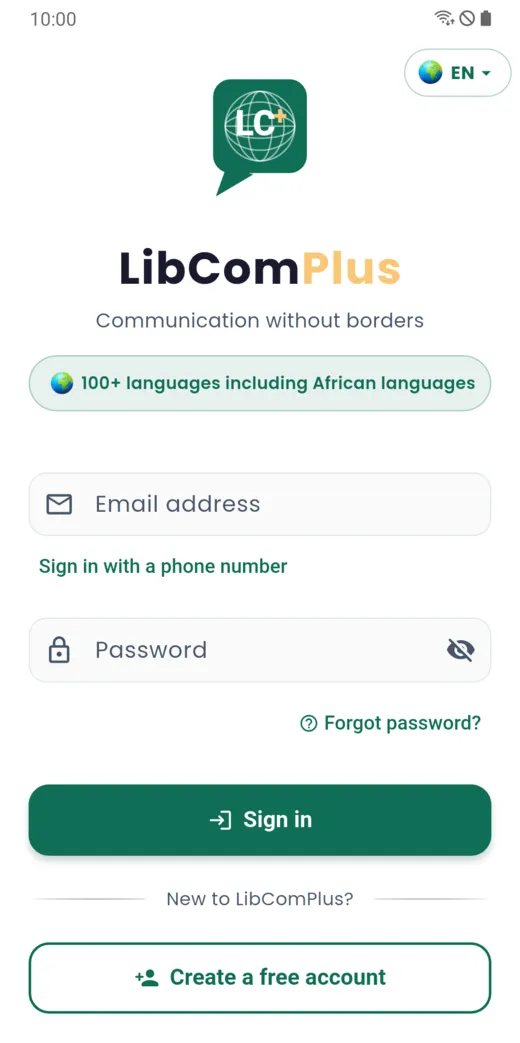
On the sign-in screen, tap “Create a free account”.
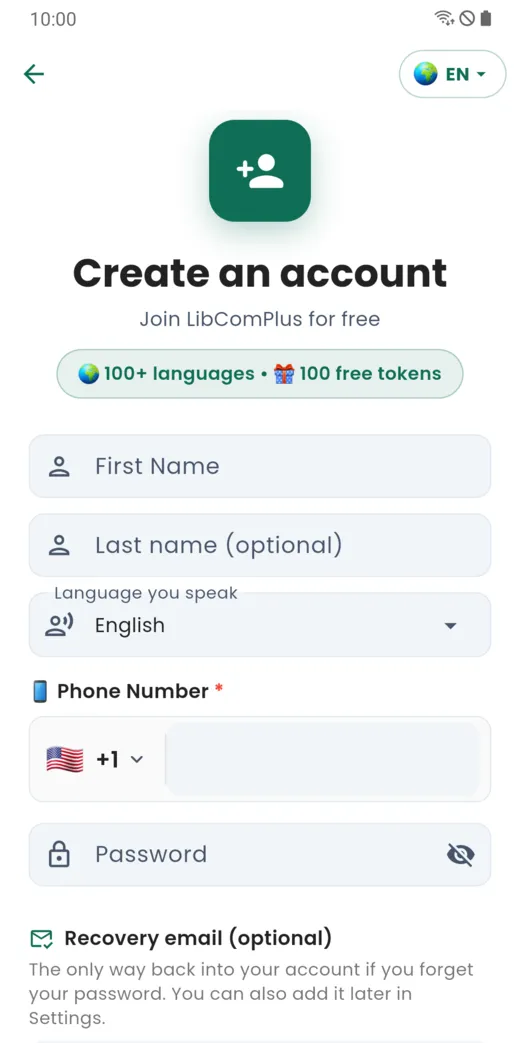
Fill in the form:
- Your first name. The last name is optional.
- The language you speak: the language you write and speak in.
- Your phone number, with your country code.
- A password of at least 8 characters, with an uppercase letter, a lowercase letter and a digit.
- A recovery address (optional): it is the only way to recover your account if you forget your password. You can add it later in Settings.
Then accept the terms of use and the privacy policy; their links open from the screen. At the end, a welcome screen shows your referral code: share it to invite your loved ones.
Free tokens are offered when you sign up, with no bank card. The exact number is shown on the account creation screen. See the guide “Tokens, subscriptions and payments”.
Permissions
The app asks for access to contacts, notifications, the microphone and the camera when it needs them: for example, the microphone when you record a voice message. You can refuse, and allow them later in your phone settings.
Your languages
You set the display language of the app, the language of notifications and your communication language separately, in Profile › Settings › Languages. The guide “Account, languages and privacy” describes them.
Send your first message
- Tap the Chats tab.
- Tap the round button to start a new conversation.
- Pick a contact and write in your language.
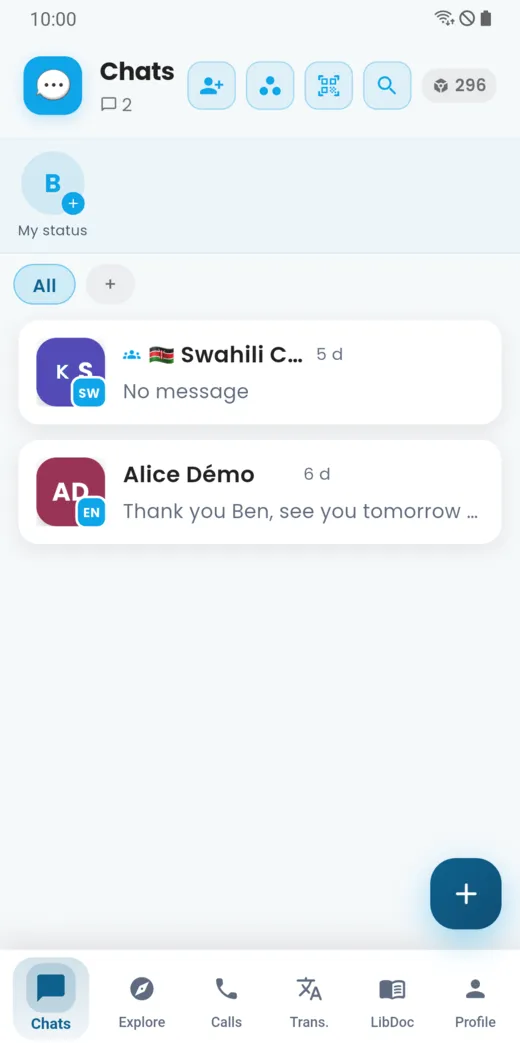
The other person reads the message in theirs. For everything about chats, go on to the guide “Translated messages”.
Doesn’t this page answer your question?
Ask it in the help window, or write to [email protected].
Ask a question